
Team Management
Simply Static Studio is built for teams, and we put a lot of effort into making managing access straightforward.
Manage Users
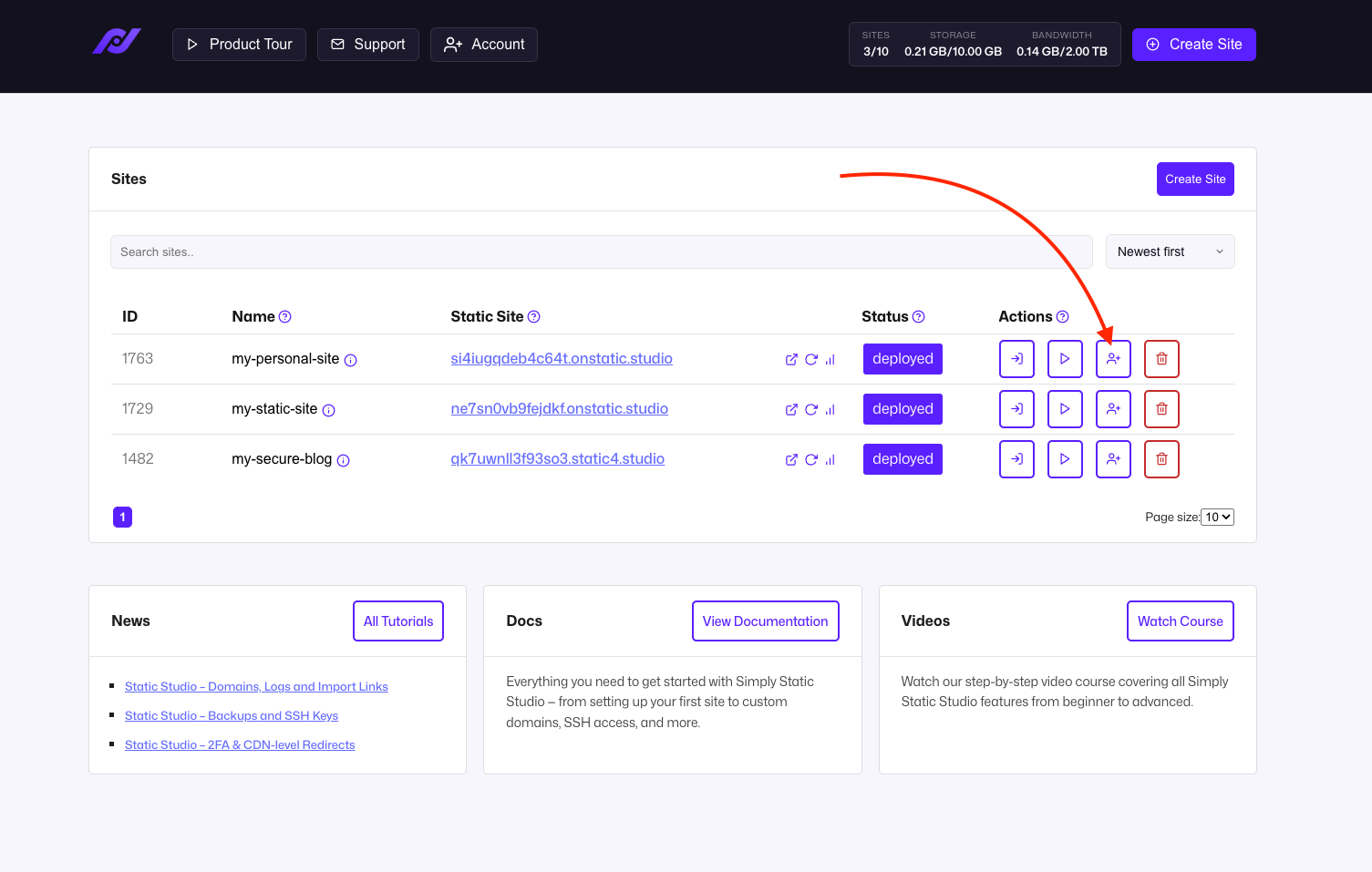
Click on the Manage Users icon to open up the user management settings:
A modal window will open asking you to provide the e-mail of the user you would like to add to your site:
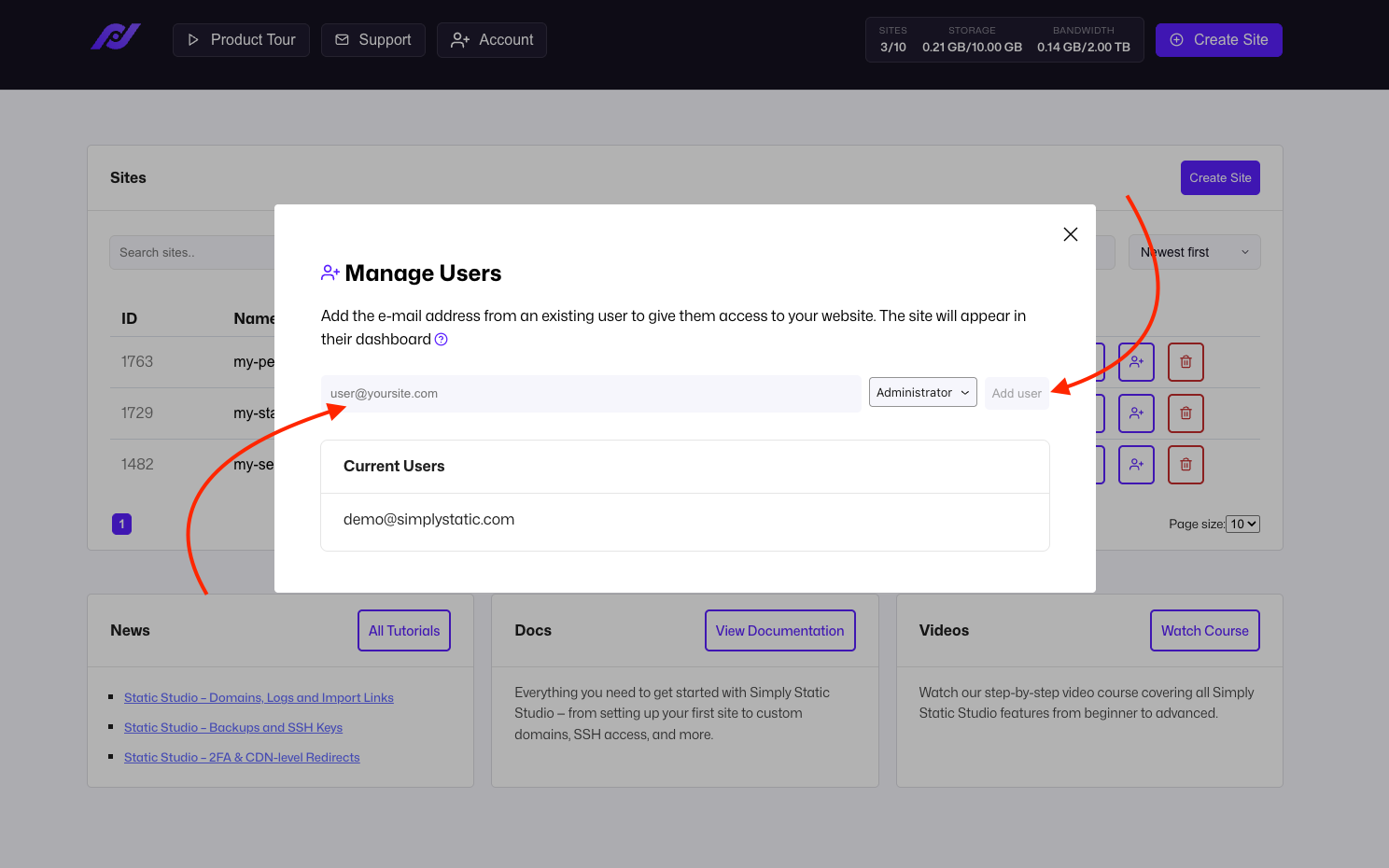
Add the e-mail address, choose a user role (represents the user role in your WordPress installation), and click Add User.
Existing account
Your team member already has an account on static.studio, so he will be invited immediately and will see the site in his dashboard.
New account
If we can't find a user with the email given, we will send them a one-click invite link to join.
Once he confirms via email, he will see the site in his dashboard.
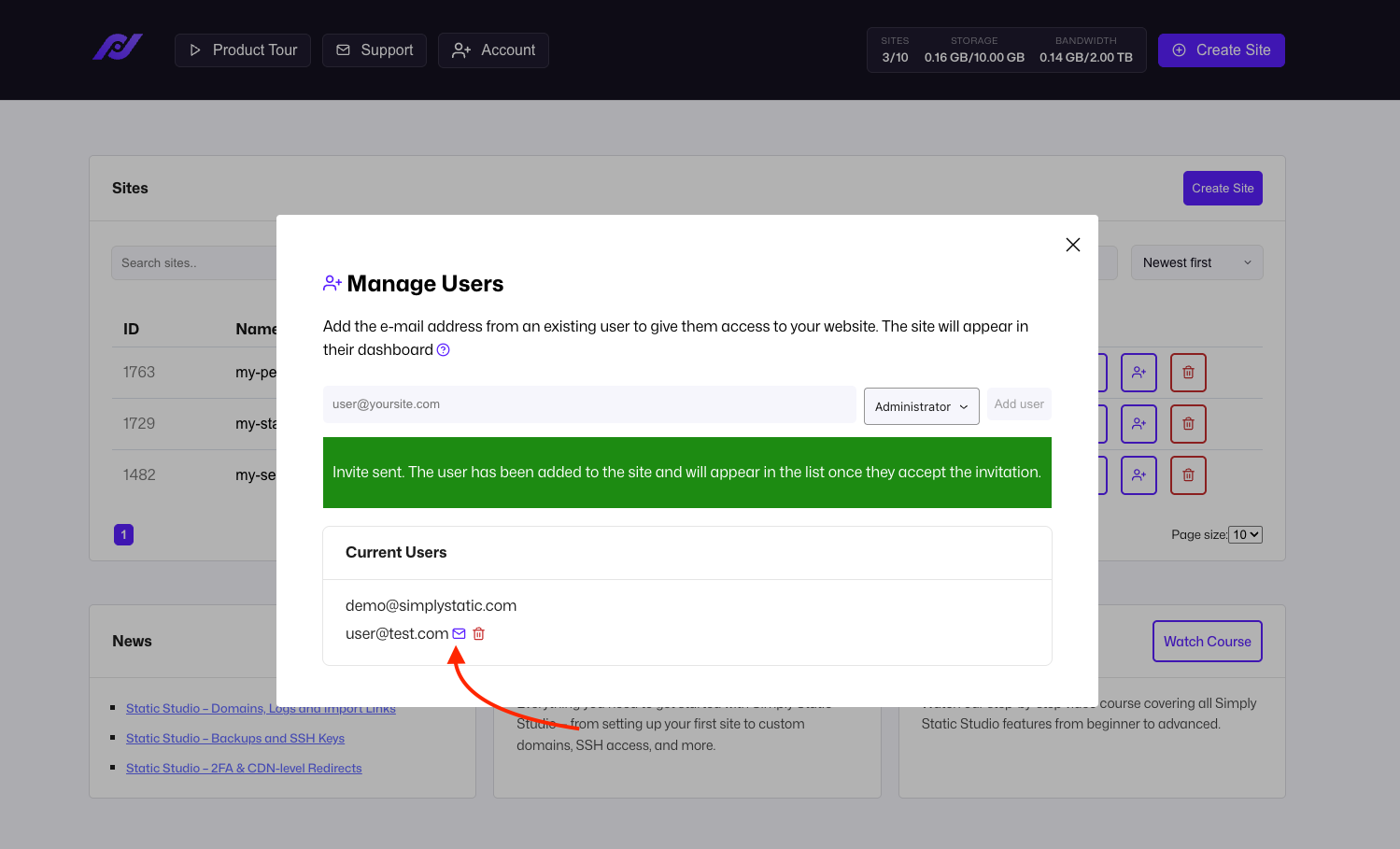
Our invite links are only available for 6 hours to keep things secure. However, you can easily send him another invitation by clicking the little e-mail icon next to his e-mail address:
Remove user
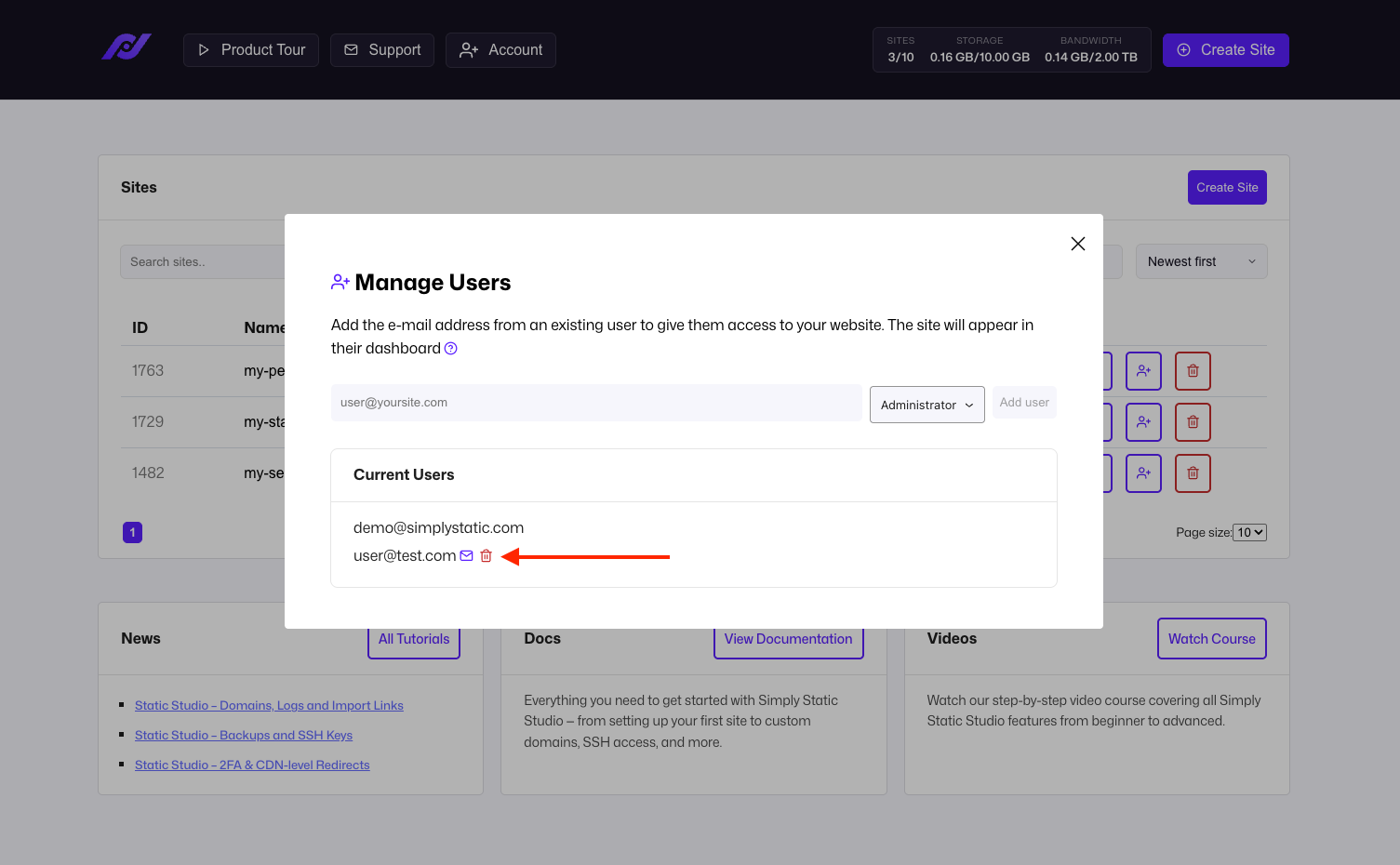
You can revoke access to a specific site anytime by clicking the delete icon next to the e-mail address:
For security reasons, we won't allow you to remove the account that created the site.
If you want to transfer full ownership of a site, don't hesitate to contact our support team.
User privileges
The accounts for invited team members are free; therefore, they won't be able to create their own sites (unless they upgrade their accounts).
Invited team members can't perform non-invertible actions, such as deleting a project or inviting other team members - these features are limited to the site owner.
Quota
Sites you get invited to do not count against your quota - we only count sites created by yourself against your total plan quota - that's why invited team members often see "0 of 0 sites created."