
How to replace URLs
When you push your static site, every link that points back to your WordPress site needs to be rewritten so it works in its new location. Simply Static handles this for you, and the Replacing URLs option lets you choose how those links are rewritten.
You'll find it under Simply Static > General, near the top of the page. There are three modes: Absolute URLs, Relative Path, and Offline Usage. The right choice comes down to where your static site will live, so here's how to decide.
Absolute URLs (recommended for almost every site)
If your static site will live on your own domain, this is almost always the option you want.
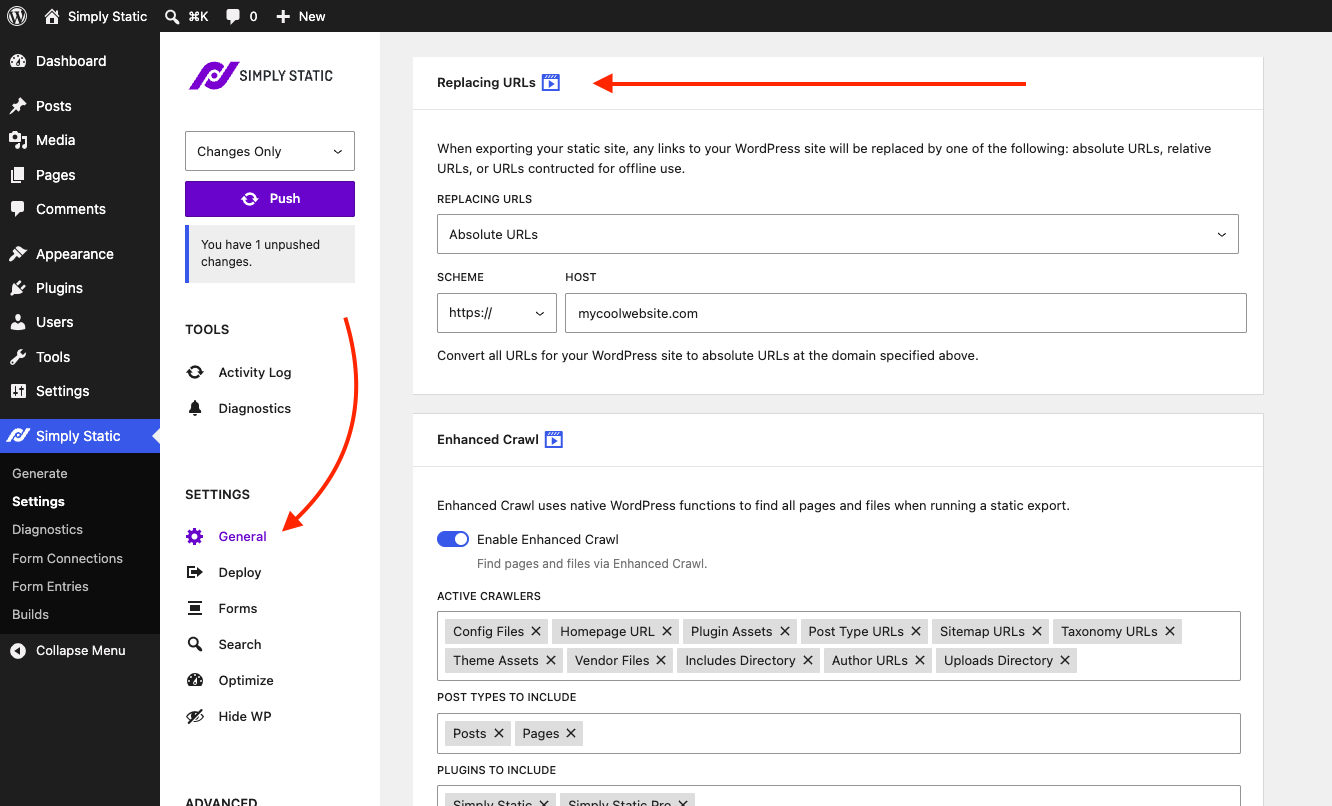
Absolute URLs rewrite every link as a full URL at the domain you specify. You set two fields:
- Scheme: usually
https://. - Host: your domain, for example
mycoolwebsite.com.
Because every link becomes a complete URL, including the ones in your page head like Open Graph image tags, canonical tags, sitemaps, and feeds, your site behaves correctly for SEO and social sharing previews. If you're publishing to a real domain, start here.
Relative Path (only for subdirectories)
Relative Path rewrites links as paths rather than full URLs, so the files can work across any domain. This is only useful when your site lives in a subdirectory, and we do not recommend it for a root domain.
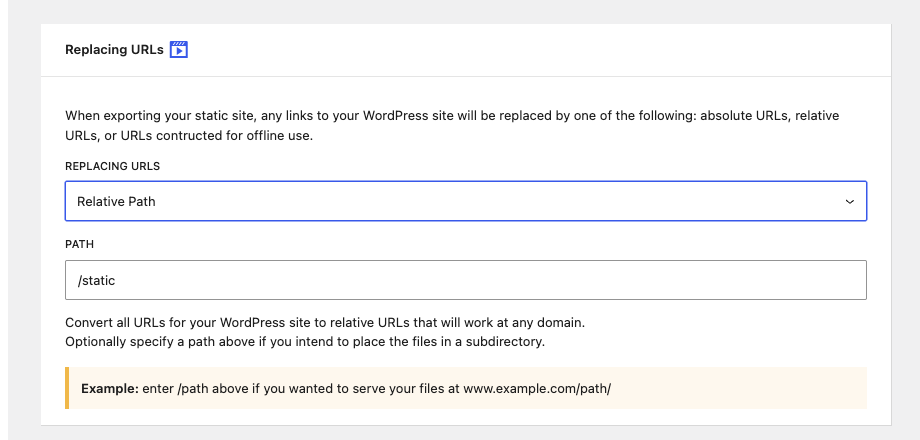
The reason to avoid it on a root domain is that many important tags require a full URL, not just a path. Open Graph images, link, and canonical tags, and similar metadata all require an absolute URL to work. With relative paths, those values end up incomplete, which breaks social previews and can hurt your SEO.
If you are serving from a subdirectory, set the Path field to that subdirectory. For example, enter /static if you'll serve your files at www.example.com/static/ .
Offline Usage (for local browsing only)
Choose Offline Usage only when you want to download the static site and open it directly on your computer, without a web server involved.
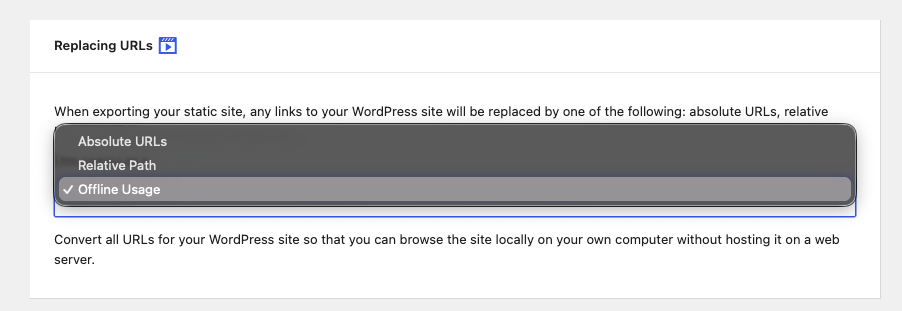
It rewrites URLs so the files link to each other locally, which means you can browse the site by opening it straight from your hard drive. This mode is meant for local previewing or archiving, not for publishing. If you upload an offline-configured site to a host, the links won't behave the way you expect, so switch back to Absolute URLs (or Relative Path for a subdirectory) before you publish.
Which option should I choose?
- Publishing to your own domain: Absolute URLs.
- Publishing into a subdirectory of a domain: Relative Path, with the subdirectory set in the Path field.
- Only viewing the site locally, with no server: Offline Usage.
When in doubt, pick Absolute URLs. It's the safest choice for any site that lives on a real domain.