
Push your static site
The Push button is the starting point for working with Simply Static.
From here, you choose what you want to publish, send your site to its destination, and follow the whole process while it runs.
Start a push
Open Simply Static from your WordPress dashboard. At the top of the panel, you'll find a scope dropdown set to Full Site and the purple Push button.
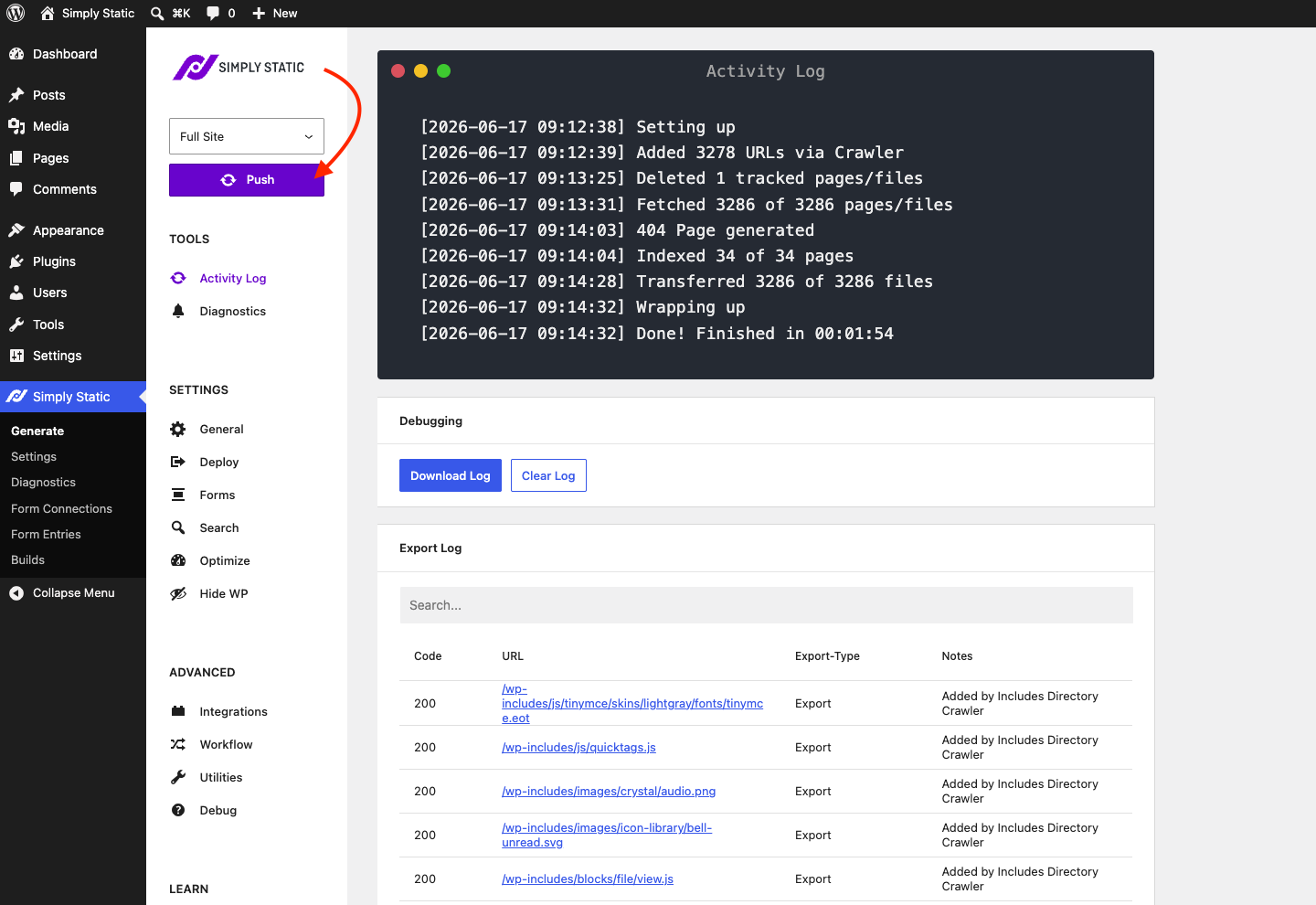
Use the dropdown to choose what you want to push. Full Site publishes your entire site, which is exactly what you want for your first run. Once you've completed a full push, you can switch to the other modes to push only what changed or just a single page. See How to use Single Exports, How to use Incremental Exports, and How to use Build Exports for those.
When you're ready, click Push. Simply Static crawls your site, collects every page and file, and sends them to the destination you've configured under the Deploy settings. If you haven't picked a destination yet, head to Deployment first to set one up.
Follow progress in the Activity Log
The Activity Log shows what's happening in real time.
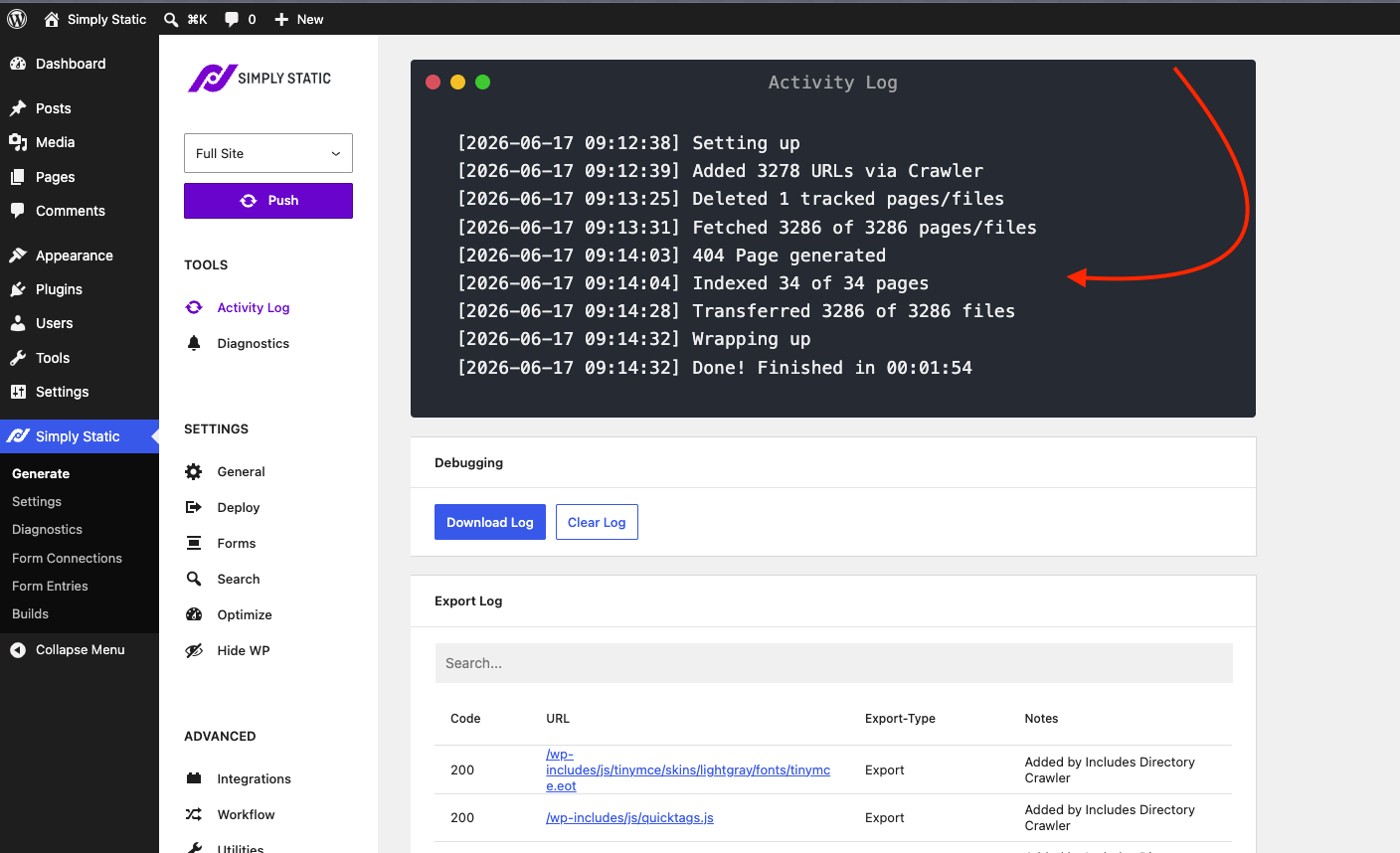
You'll see each stage as it runs: setting up, crawling and adding URLs, fetching your pages and files, building the 404 page, indexing, and finally transferring everything to your destination. When the push finishes, a Done! line shows the total time it took.
If WP-Cron is working on your site (you can confirm this on the Diagnostics page), you can safely close this page after starting a push and come back later to check the status. The log keeps a running record of every step, so you can see exactly what happened, how long it took, and whether anything needs your attention.
Download or clear the log
Just below the activity log, the Debugging area has two buttons. Download Log saves a copy of the current log to your computer, which is useful to attach when you reach out for support. Clear Log wipes the log so your next push starts with a clean slate.
Review the Export Log
The Export Log lists every URL Simply Static processed during the push.
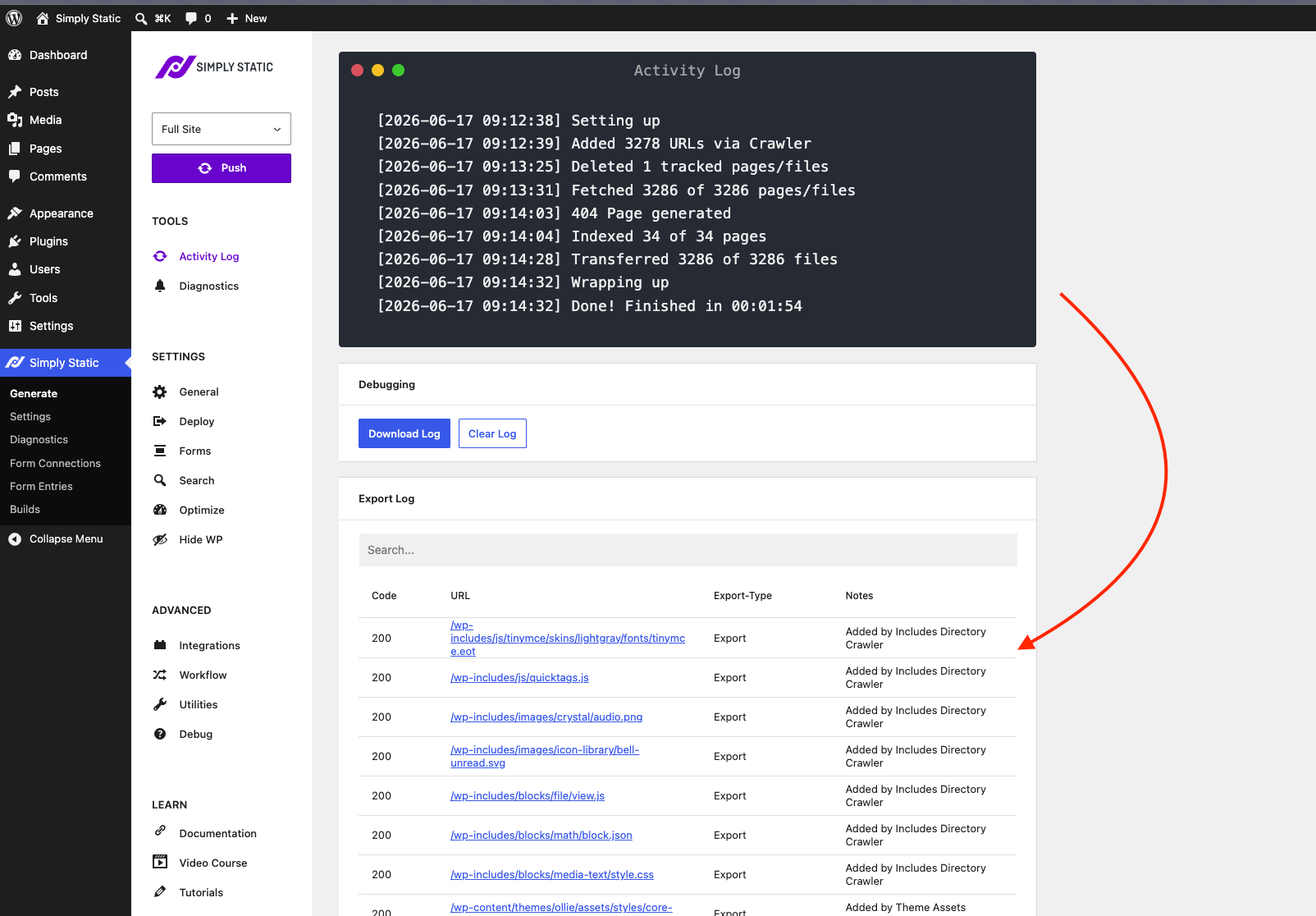
Each row gives you a few useful details:
- Code: the HTTP status code returned for that URL, so you can quickly spot anything that came back as a 404 or another error.
- URL: the page or file that was processed.
- Export-Type: how that item was handled.
- Notes: extra context based on your configuration, such as why a file was picked up. For example, you might see "Added by Includes Directory Crawler" or "Added by Theme Assets".
Use the search box to filter the list when you're looking for a specific page or file. Together with the Activity Log, the Export Log is one of the most useful tools for understanding exactly what ended up in your static site, and for tracking things down when something doesn't look right.
Next steps
- Deployment: choose where your site is published
- Include Pages and Files
- Exclude Pages and Files