
Deploy to SFTP
What you need: Simply Static Pro
The SFTP method uploads your static site to a remote server over SFTP. It's a good fit when your host provides SFTP access, and you'd like Simply Static to send the files straight to your server every time you push.
Choose the SFTP method
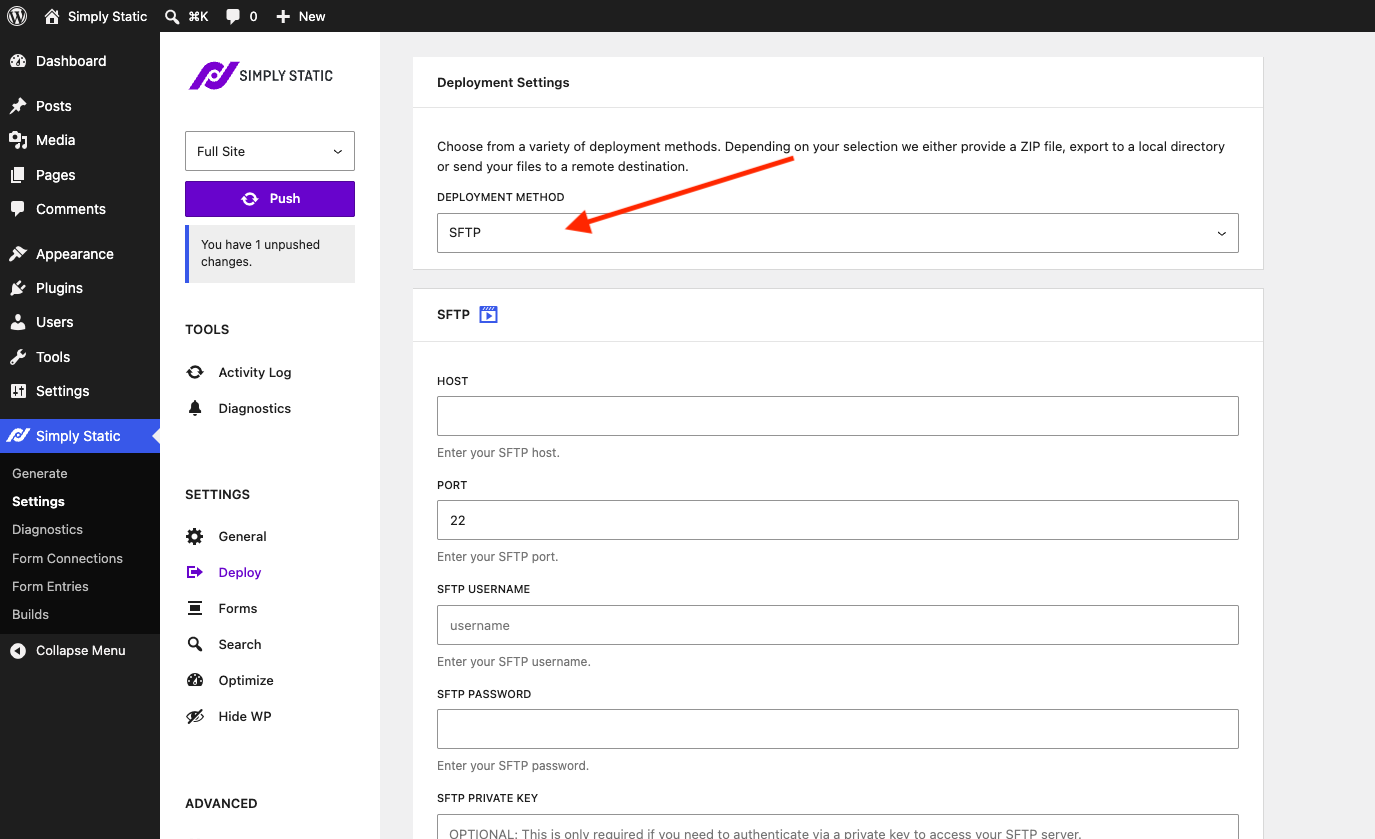
Open Simply Static > Deploy. Under Deployment Settings, set the Deployment Method dropdown to SFTP. The SFTP connection fields appear below.
Enter your connection details
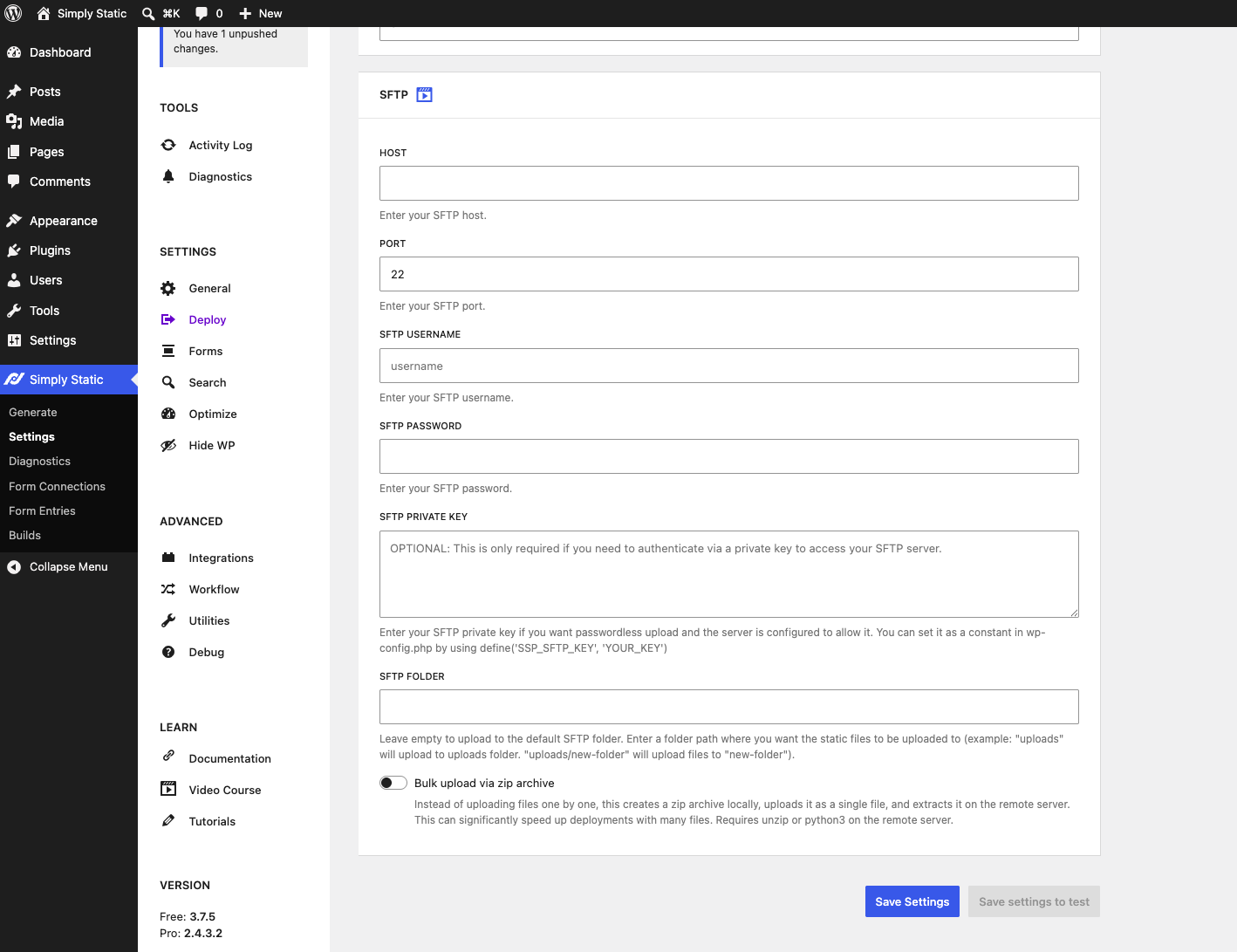
Fill in the details for your server:
- Host: your SFTP server address.
- Port: the SFTP port, which is
22by default. Only change this if your host uses a different port. - SFTP Username: the username for your SFTP account.
- SFTP Password: the password for your SFTP account.
For many servers, the host, port, username, and password are all you need.
Authenticate with a private key (optional)
If your server uses key-based authentication instead of a password, you can use the SFTP Private Key field. This is optional and only needed when you want passwordless upload and your server is set up to allow it.
For better security, you can store the key as a constant in wp-config.php rather than saving it in the database, like this:
define('SSP_SFTP_KEY', 'YOUR_KEY')
Choose the target folder
Use the SFTP Folder field to decide where your files land:
- Leave it empty to upload to the default SFTP folder.
- Enter a folder path to upload to a specific location. For example,
uploadssends the files to the uploads folder, and uploads/new-folder sends them to new-folder.
Speed up large sites
Turn on Bulk upload via zip archive to make deployments with many files much faster. Instead of uploading each file one at a time, Simply Static creates a ZIP locally, uploads it as a single file, and extracts it on the remote server. This requires unzip or python3 to be available on the server.
Push your site
Once your details are in, click Save Settings, then click Push from the panel on the left. Your files are uploaded to the SFTP server, and you can track the progress under Simply Static > Activity Log.
If you're serving the site from a domain, it's worth confirming your link settings first. See How to replace URLs.